The main menu item - Disk and computer management («Drives»).
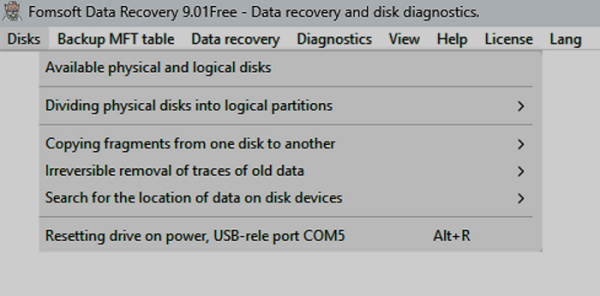
Fig. E07. Main menu item « УDisk and Computer Management».
Physical and logical drives.
When the submenu of the functional menu "Physical and logical disks" is activated, the screen displays information about the physical
and the logical disks that are not there, Fig. 17.
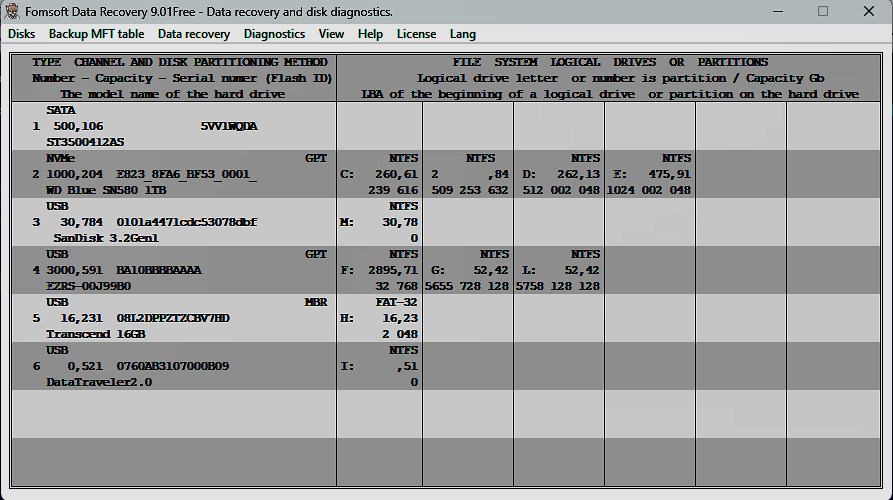 Fig. 17. Information about physical and available on them logical disks.
The licensed version of the program highlights the serial numbers of the licensed media in green.
The information is presented as alternating by the background color eight lines describing the hard (physical) disk.
Up to six logical disks or partitions are displayed for each hard disk
Parameters of physical disks.
Details of hard disks, both internal and external, as well as the parameters of flash drives and
flash memory cards consists of three lines, which displays:
| # | 1 | 2 | 3
|
|---|
| 1 | ❶ Connection channel
| ❷ Logical disk disable flag
| ❸ Disk partitioning method
|
|---|
| 2 | ❹ Serial number
| ❺ Capacity
| ❻ Serial number or ID flash
|
|---|
| 3 | ❼ НName of the hard disk model
|
|---|
❶ The connection channel can take the following values:
- Internal channel SATA/PATA
- External port SATA
- External port SUNPLUS
- External port IO_DATA
- External port LOGITEC
- External port JMICRON
- External port CYPRESS
- External hard drive
- Flash memory card or flash disk
- The port not recognized
❷ Flag disable logical disks, allowing you to disable the recognition of the operating system
system division of the hard disk into logical partitions, details here.
❸ The way the disk is partitioned. Specifies how to separate the physical space of a physical disk
to logical partitions (disks).
❹ The serial number of the physical disk. The number of disks starts from zero.
The program Fomsoft Data Recovery always uses direct access to the physical hard disk, when accessing
to a logical or virtual disk, the logical address is converted to the corresponding physical address.
❺ The physical media capacity is displayed in megabytes with three decimal places.
❻ Serial number or ID flash:
- The serial number of the hard disk is displayed for external and internal hard drives.
- In the case of a flash drive or a memory card, a certain identifier is used, calculated based on the physical parameters of the media.
❼ The name of the hard disk model.
This field contains the serial number of the external or internal hard disk, and for flash drives and memory cards it remains empty.
Data about logical disks, reserved and unidentified partitions.
For each of the eight physical disks, the Fomsoft Data Recovery program displays information about the first six logical partitions.
Logical partitions can be mounted by the operating system as logical disks with identifiers assigned to them in the form of Latin
alphabet characters. Some logical partitions may not be recognized by the operating system, or may be reserved for maintenance
services. In this case, the Fomsoft Data Recovery program designates them by the serial number of the logical partition.
The data for each logical disk is presented as three lines:
| # | 1 | 2
|
|---|
| 1 | ❶ The file system type is NTFS or FAT-32
|
|---|
| 2 | ❷ Logical disk, partition
| ❸ Size in MB
|
|---|
| 3 | ❹ LBA started the log. on a physical medium
|
|---|
Divide the hard disk into partitions.
Each physical device (disk) can be divided into several logical partitions.
There are three ways to breakdown:
- MBR ( Master Boot Record ) - use of the so-called table of partitions located in the zero sector of the physical medium.
A significant limitation of using MBR markup is that the logical partition can not be greater than 2.2 TB
that does not allow to use hard disks of the big size.
- GPT ( GUID Partition Table ) - this method practically removes the limitations on the size of the physical disk, because in theory it
can be 9.4 * 109TB .
- There is only one logical partition on the physical disk, its zero sector contains the so-called Boot Sector
Boot Sector .
In the case of physical failure and destruction of the logical matching of the boot sectors and partitions tables, the operating system can not
perceive the logic of the read information from the boot sectors. In this case, the boot process can be looped or this logical disk
for the operating system becomes invisible.
Most programs and users in this case modify the zero sector by changing the descriptor so that the system does not recognize it
division into logical partitions. This leads to the fact that the system considers this disk not to be distributed to logical disks and offers
it must be initialized.
To exclude the case of erroneous initialization, the program provides an operation to disable the logical division of the physical disk with
simultaneous marking of all space of a hard disk as occupied by a foreign file system.
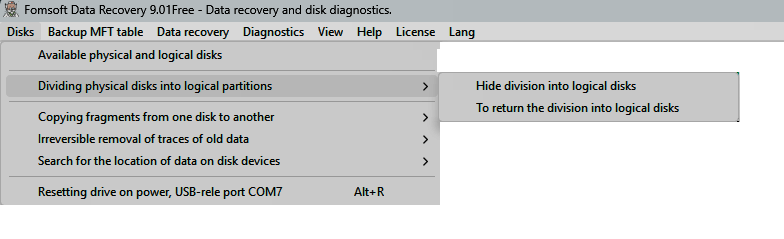 Fig. 19. The function of dividing a physical disk into logical partitions.
In Fig. 20 shows a fragment of the screen on which physical disks with serial numbers 3 and 6 are disconnected from the file system.
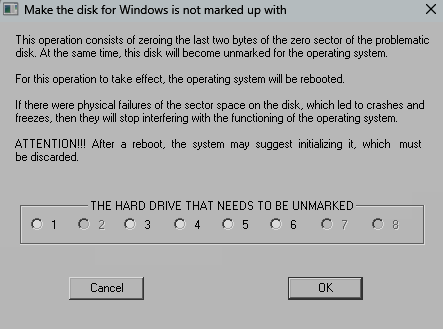 Fig. 20. A fragment of the screen with the disks turned off.
This operation consists of zeroing the last two bytes of the zero sector of the problematic disk. At the same time, this disk will
become unmarked for the operating system. For this operation to take effect, the operating system will be rebooted.
Attention! After a reboot, the system may suggest initializing it, which must be discarded.
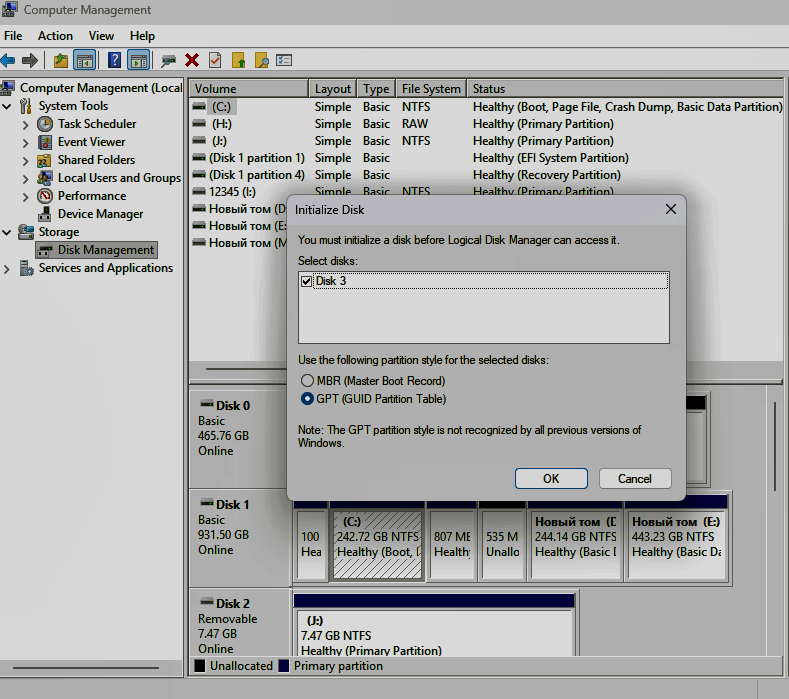 Рис. 21. After a reboot, the system may suggest initializing the disk.
Make the hard disk for Windows unplugged - «Disconnect logical drives from the system».
When this sub-menu is selected, the dialog box shown in Fig. 22.
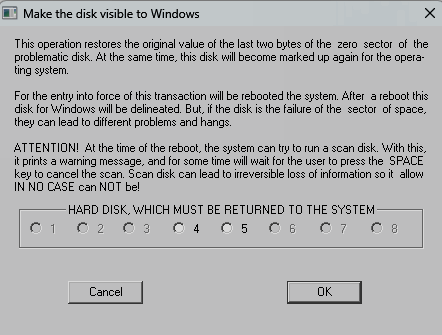 Fig. 22. The submenu item «Disconnect logical drives from the system».
For this operation to take effect, the system will be rebooted. After a reboot, this Windows disk will become marked up again.
However, if there are sector space failures on the disk, they can lead to various problems and freezes.
Attention! At the moment of reboot, the system may try to run the disk error checking program Check Disk.
At the same time, it issues a corresponding warning, and for some time it will wait for the user to press the key.
SPACE BAR to cancel the scan.
Do not miss this moment, as scanning a disk can lead to irreversible loss of information, because on a
disk that has physical failures, the Check Disk program should be allowed to work ABSOLUTELY NOT!
|
|